
Updated on: February 10, 2026
- 🥇 RoboForm : A very secure password manager with advanced form-filling, password auditing, and easy, encrypted password sharing. Its Microsoft Edge extension makes saving and auto-filling credentials effortless, while its intuitive interface and affordable pricing suit both individuals and families.
I tested the majority of Microsoft Edge-compatible password managers to find the very best in 2026 — grading each based on its features, functionality, and overall value. After a thorough examination, 5 password managers stood out as superior to the rest.
Microsoft Edge does offer a built-in password manager, but it has limitations — it generates relatively weak passwords, lacks customization, has an inconsistent auto-fill, isn’t updated frequently, and lacks adequate protection against unauthorized access. Additionally, you can only sync passwords between Microsoft products, such as Edge, on your Windows computer and Android devices.
The password managers on my list are all better than Edge’s built-in password manager in many ways. They offer advanced features like multi-OS syncing, reliable auto-fill, password sharing, emergency access, family controls, cloud storage, and much more. My favorite is RoboForm, but every option on this list offers value, so continue reading to find the right fit for you.
Quick Summary of the Best Password Managers for Edge


🥇1. RoboForm — Best Edge Password Manager With Great Value and Form-Filling


RoboForm is one of the best password managers I’ve tested for Edge, combining strong security with market-leading form-filling. Its Edge extension reliably auto-saves and auto-fills logins, payment cards, addresses, and complex identity data using pre-built and custom templates, which Edge’s native password tools can’t handle.
All data is protected with 256-bit AES encryption, local-only encryption, and optional multi-factor authentication, and the Security Center helps identify weak, reused, or compromised passwords. In daily use, RoboForm’s Edge integration feels fast and dependable, making it especially useful for users who regularly log into accounts or complete detailed web forms directly in Edge.
Here are some of the features that make RoboForm a standout choice:
- Unlimited password storage on all your devices.
- Two-factor authentication for enhanced security.
- Support for passkeys.
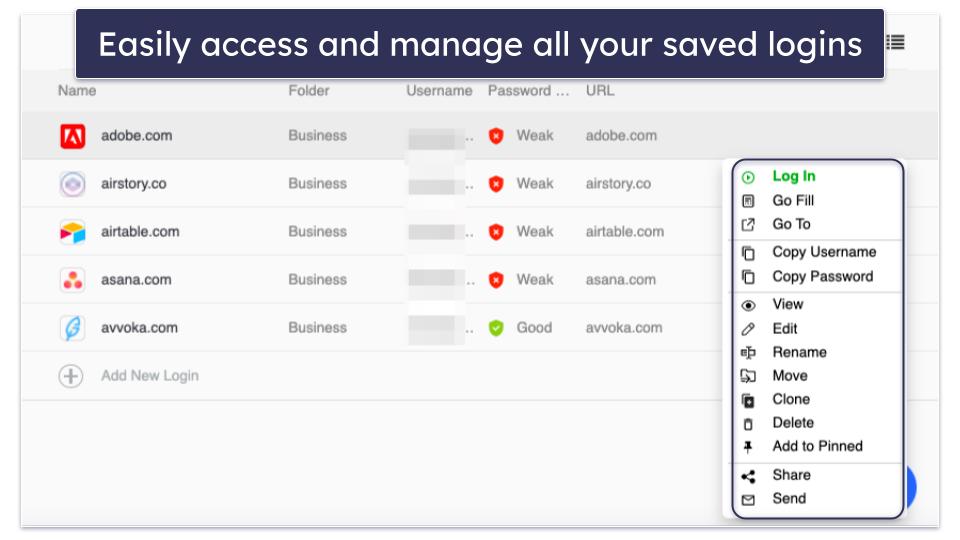
- Easy password sharing.
- Password auditing.
- Bookmarks storage.
- Emergency access.
- And more…
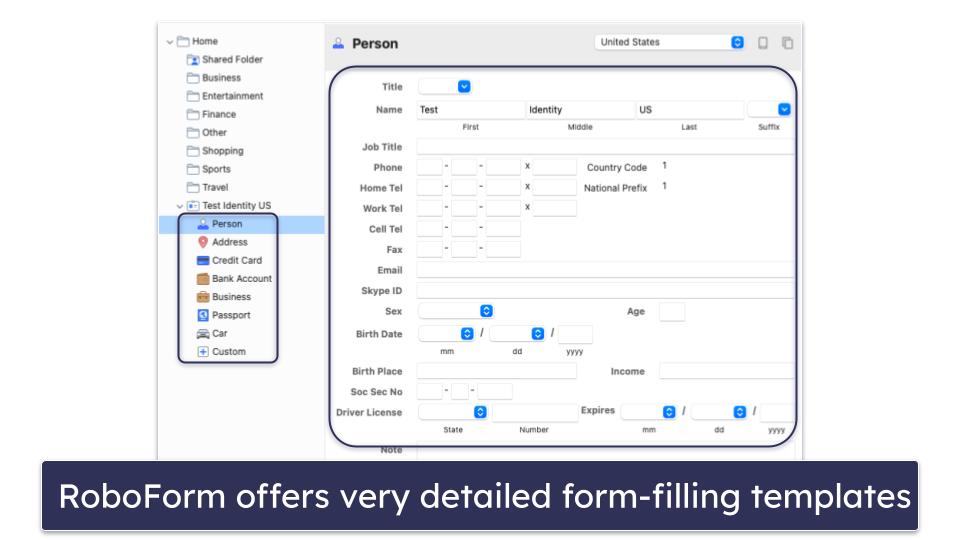
What really sets RoboForm apart is its outstanding form-filling capabilities. While many password managers offer auto-fill for credit cards and addresses, RoboForm takes it to another level. With 7 templates and customizable options, it tackled even the most complex web forms I tested against it.
RoboForm may not include extras like personal file storage or broad dark web intelligence feeds, but it compensates with features that directly strengthen everyday password security and usability. It provides encrypted cloud backup for all vault data, detailed password health reports that flag weak and reused credentials, and extremely granular sharing controls for both individual items and folders.
RoboForm does offer the convenience of secure bookmark storage. This feature encrypts, organizes, and seamlessly syncs your bookmarks across all your devices. Consequently, your favorite sites are never more than a click or tap away — irrespective of the device you’re currently using.
RoboForm has a free version that offers unlimited password storage, password security auditing, form filling, and even bookmark storage on a single device. But if you want multi-device coverage, RoboForm Premium is available at just $0.99 / month. This plan unlocks features like two-factor authentication and emergency access. Families can opt for the RoboForm Family plan, covering up to 5 users for an annual cost of $1.60 / month.
Bottom Line:
RoboForm is a highly capable password manager for Microsoft Edge users, combining strong, industry-standard security with some of the most advanced form-filling tools available. It uses 256-bit AES encryption, zero-knowledge architecture, and supports 2FA. What really sets it apart is its ability to accurately auto-fill complex web forms directly within the Edge browser. With secure password sharing, cross-platform syncing via its browser extension, and very affordable pricing, RoboForm offers excellent value and is a dependable option for Edge.
🥈2. 1Password — Intuitive Password Manager for Edge With Unique Features

1Password is an excellent choice for Edge users — it combines simplicity with an extensive feature list. Both the individual and family plans provide exceptional value, strong security protocols, and seamless synchronization across devices.
During my tests, 1Password’s Edge extension proved extremely reliable — capturing and auto-populating passwords and payment details without a hitch. It also suggested strong, customizable passwords when creating new accounts, which is really helpful.
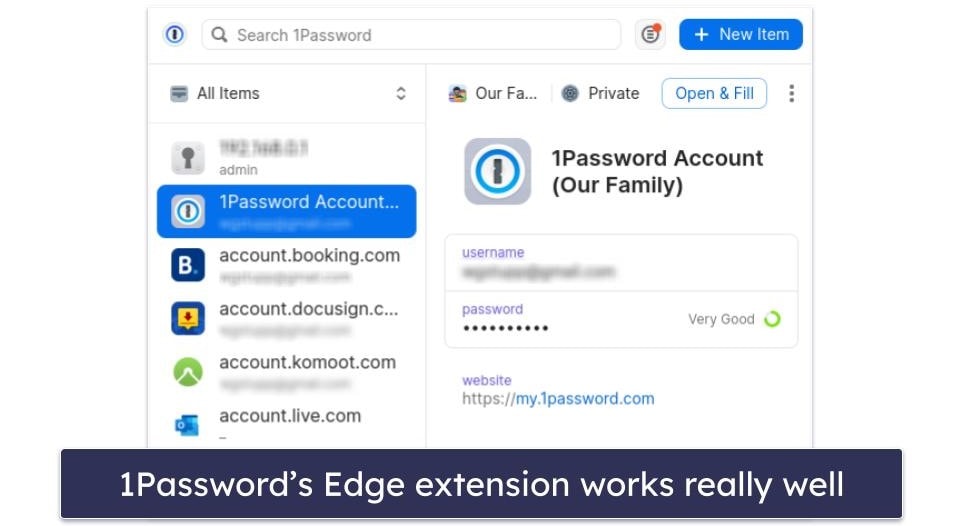
1Password goes beyond the basics with an impressive range of extra features:
- Vault auditing.
- Dark web monitoring.
- Convenient password sharing.
- Support for passkey authentication.
- Wide-ranging 2FA methods.
- Integrated TOTP authenticator.
- Travel Mode.
- Virtual payment cards for users in the US.
- And more…
1Password lets you set up multiple vaults — making it simple to organize and manage all your passwords and other data.
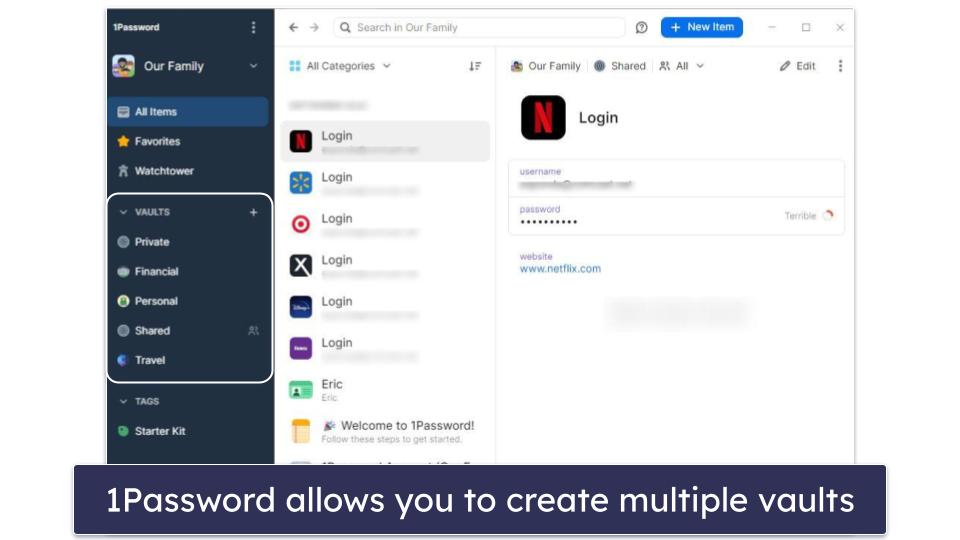
The Edge extension is also fully integrated with passkeys — a more secure and user-friendly way to authenticate your accounts. This is something many competitors are adopting, and it offers a great way to increase your account security.
1Password makes sharing passwords super simple. Unlike many password managers, it allows you to share passwords with people who don’t have a 1Password account. I also really like Watchtower — the vault auditing tool — which makes it easy to identify and rectify weak or compromised passwords and scans for possible breaches of your email address on the dark web.
Travel Mode is another feature unique to 1Password — it lets you conceal entire vaults while traveling, providing an added layer of privacy and security. Virtual payment cards also allow you to hide your actual debit card number and protect your information from leaks — it’s just a shame this feature is restricted to users in the US.
1Password Individual plan gives you access to all of 1Password’s features for just $2.99 / month. But if you’re looking to cover your family too, the 1Password Families plan covers up to 5 users for only $4.49 / month, with the ability to add additional users for a nominal fee. Both plans are available on a 14-day free trial.
Bottom Line:
1Password delivers a user-friendly and secure password manager for Edge loaded with features — powerful encryption, a variety of 2FA options, auditing of password security, dark web monitoring, account recovery, secure password sharing, virtual payment cards, Travel Mode, and more. Its intuitive Edge extension ensures all its features are easy to use, even for new users. It’s a superior choice for individual users and families alike — plus, you can try it risk-free for 14 days.
Read the full 1Password review
🥉3. Dashlane — Great Security and Comes With a VPN

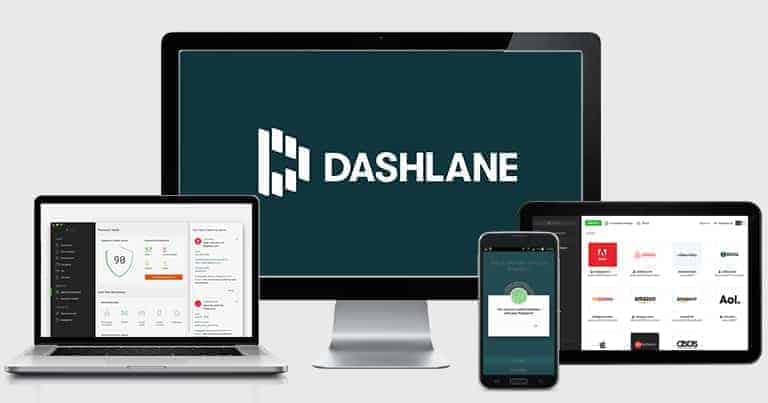
Dashlane comes with strong encryption, really good auto-fill capabilities, and great extras such as a VPN, phishing protection, and live dark web monitoring. Dashlane’s web-based app is also remarkably intuitive, allowing you to configure and operate the password vault in mere minutes.
Dashlane includes features such as:
- Integrated VPN.
- Secure password sharing.
- Dark web monitoring.
- Advanced anti-phishing tools.
- Password strength checker.
- 1 GB secure cloud storage.
- Multiple recovery options.
- And more…
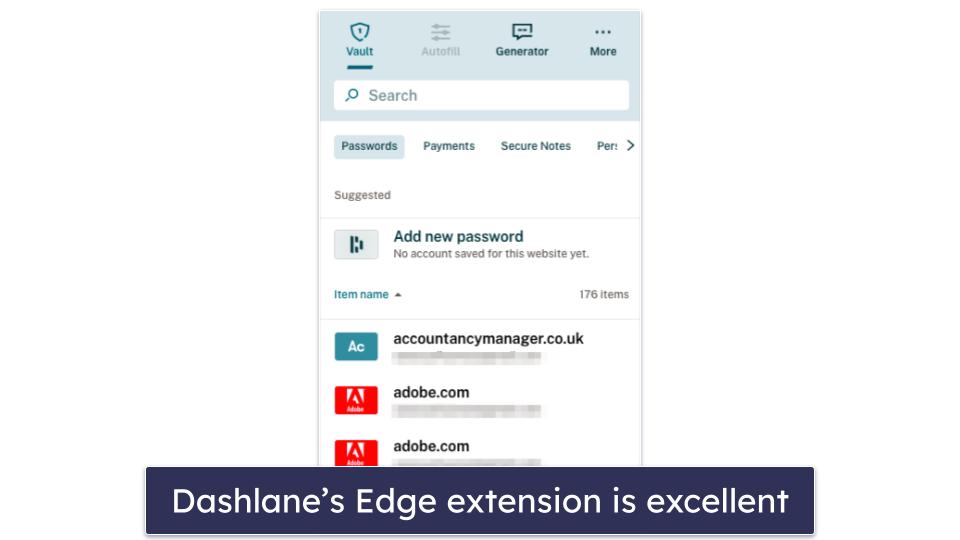
During my testing, Dashlane’s Edge extension impressed me by seamlessly auto-filling logins and generating strong passwords, surpassing the capabilities of Edge’s built-in password manager. On top of that, Dashlane accurately filled in complex web forms with personal information like addresses, credit cards, and driver’s license details. The Edge extension also comes with phishing protection that warns you about scam sites imitating Dashlane and alerts you if you’re about to enter a stored password on a phishing site.
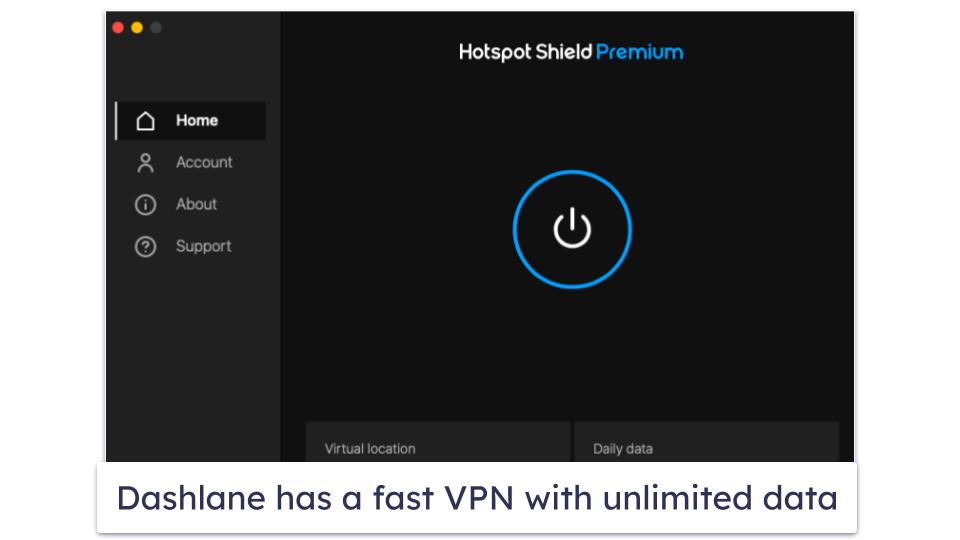
Dashlane comes with a cool additional feature — a VPN. In my tests, it proved to be secure, allowing for an encrypted internet connection and giving me excellent speeds. I connected to various servers and found I could stream HD video without any interruptions. While it’s not quite as good as the top VPNs in 2026, it’s still an excellent inclusion that no other password manager has.
Like 1Password, Dashlane also offers support for passkeys, which provide a more secure and user-friendly way to authenticate your accounts.
Dashlane Premium, available at $5.42 / month, includes unlimited password storage across unlimited devices, the bundled VPN and anti-phishing. Dashlane Friends & Family, priced at $4.07 / month, covers up to 10 users (only 1 user gets access to the VPN) and features a family management dashboard. All of Dashlane’s plans are backed by a 30-day money-back guarantee.
Bottom Line:
Dashlane’s Edge extension provides excellent security, a rich set of features, and a user-friendly experience — I was impressed by its flawless performance across various login fields and websites. With high-level security, unique phishing protection, dark web monitoring, and a VPN, Dashlane goes the extra mile to keep your data safe. Its plans have a 30-day money-back guarantee, too.
4. Proton Pass — Excellent Security & Email Aliases for Edge Users


Proton Pass is one of the most secure password managers on the market today. It integrates seamlessly with Microsoft Edge and prioritizes user privacy. Unlike many competitors, Proton Pass uses end-to-end encryption on all stored data (not just passwords), including usernames, email aliases, and notes.
During my tests, Proton Pass’s Edge extension performed well without issues, capturing logins, auto-filling passwords, and generating new credentials with minimal effort. I really liked how smooth the auto-fill process was compared to Edge’s built-in manager. It also includes support for passkeys, letting you log in without traditional passwords, which is both secure and convenient.

Here are some other useful Proton Pass features:
- Unlimited password storage.
- Built-in 2FA/TOTP authenticator.
- Email aliases to mask your real address.
- Advanced search and tagging for vault organization.
- Regular security audits.
- And more…
The email alias feature is one of Proton Pass’s most unique offerings. I was able to generate aliases directly from the Edge extension to sign up for newsletters without exposing my personal email. This isn’t something offered by 1Password, Dashlane, or RoboForm, and it makes Proton Pass especially appealing if you’re looking to reduce spam and data leaks.

Proton Pass offers an excellent free plan with unlimited password storage across multiple devices, which is far more generous than Keeper’s free tier. The Proton Pass Plus plan starts at [Insert min. price shortcode], adding features like unlimited email aliases, dark web monitoring, and 2FA support. Proton Pass Family (covering 6 users) is also available for just . A 30-day money-back guarantee is available on all paid plans, allowing you to try them at no risk.
Bottom Line:
Proton Pass delivers a simple, secure, and privacy-first experience on Edge. With strong encryption, support for passkeys, and unique extras like email aliasing, it’s a great choice if you want more than just password storage. If you value digital privacy and use Proton’s other services, Proton Pass is a natural extension of that ecosystem.
Read the full Proton Pass review
5. NordPass — Advanced Encryption and User-Friendly Interface

NordPass is a reliable and intuitive password manager for the Edge browser. Its Edge extension and desktop app are super easy to use, making it a breeze to save, store, and auto-fill passwords. NordPass uses advanced XChaCha20 encryption to keep your data secure, and it includes the following features:
- Unlimited password storage.
- Multi-device sync.
- Password generator.
- Password sharing.
- Password health checker.
- Email masking.
- And more…
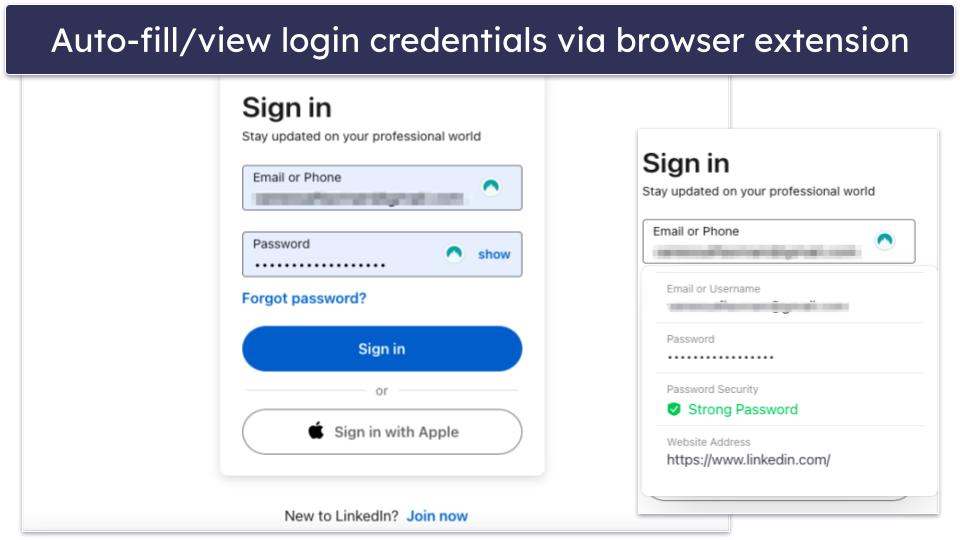
Throughout my testing, NordPass did an excellent job of efficiently filling in passwords and safely storing sensitive information. The password generator stood out with its capability to produce strong passwords and its inclusion of a passphrase generator — which I found quite useful for creating memorable yet secure passwords based on word sequences.
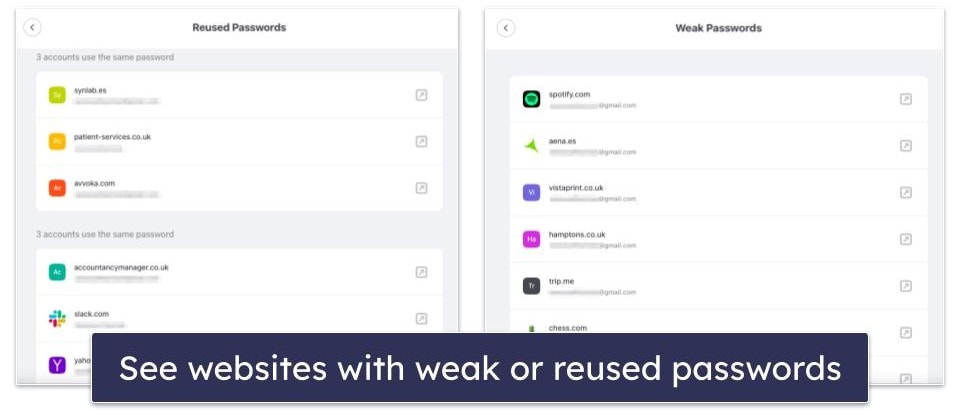
NordPass lacks some advanced features offered by competitors like 1Password, but it provides a straightforward and secure password management solution — and its 3 GB encrypted storage is a nice bonus. I also really like its vault auditing tool, which can alert you to weak, reused, or compromised passwords.
NordPass provides a free version that includes unlimited password storage, note-taking capabilities, and support for storing credit cards. It also allows you to sync your passwords across multiple devices, but you can only use 1 device at a time. NordPass Premium (which costs $1.43 / month) provides enhanced features like simultaneous access on unlimited devices, secure password sharing, file attachments, and breach monitoring. NordPass Family (for $3.69 / month) covers up to 6 users. With a 30-day money-back guarantee and a 30-day free trial, NordPass is a safe password manager that offers an excellent value.
Bottom Line:
NordPass offers an intuitive password management solution focusing on strong security measures, such as XChaCha20 encryption and multi-factor authentication. While it may not be loaded with additional features, its Edge extension and desktop app are efficient and make the process of saving and auto-filling login details straightforward. NordPass provides a decent free version, and its premium options are backed by a 30-day money-back guarantee.
Bonus. Keeper — Comes With an Encrypted Messenger

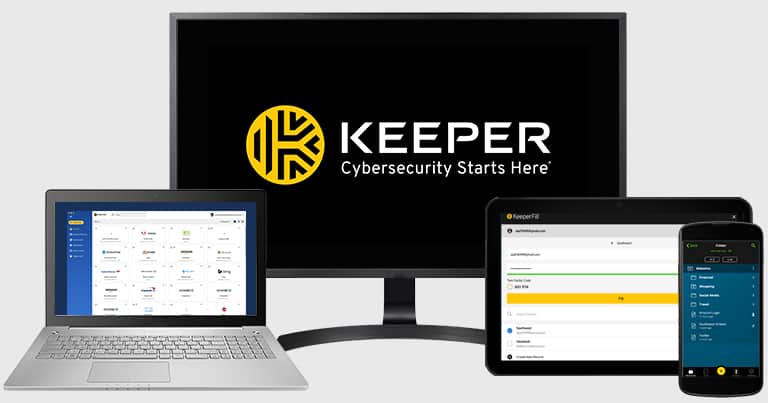
Keeper is another great choice as a password manager for the Edge browser, with top-notch encryption and a variety of multi-factor authentication options. Its desktop app offers extra functionality to enhance your password management experience.
Throughout my tests, Keeper proved to be dependable and effective, smoothly generating and auto-filling passwords in the Edge extension.
I also like how Keeper includes:
- Dark web monitoring (paid add-on).
- KeeperChat (an encrypted messaging app).
- File storage.
- Password security auditing.
- And more…
The encrypted messaging app stands out for me, allowing for secure communication with other Keeper users and offering self-destruct timers, message retraction, and the secure storage of media files within the app’s gallery.

Keeper Free is rather limited compared to free plans from competitors like Proton Pass — it can only be used on 1 mobile device with a 10 entry limit, and it even lacks auto-fill functionality, though it does include the encrypted messaging app. Keeper Personal (costing $1.67 / month) provides unlimited password storage, password sharing, multi-factor authentication, and emergency access. Families can choose Keeper Family at $3.54 / month, with 5 licenses plus 10 GB of space in the cloud. You can also add extras like dark web monitoring or more cloud storage (but this incurs an additional cost).
Bottom Line:
Keeper is a secure password manager with strong encryption and a zero-knowledge policy to ensure your data’s safety. I loved the encrypted messaging application – perfect for secure communication and media storage — and the Edge extension is super intuitive.
Bonus. Total Password — Seamless Password Management for Edge
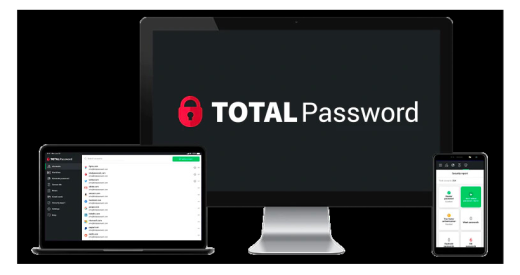
Total Password is a pretty good password manager for Microsoft Edge. It integrates strong security features with an easy-to-navigate interface, delivering a decent password management experience for both beginner and tech-savvy users.
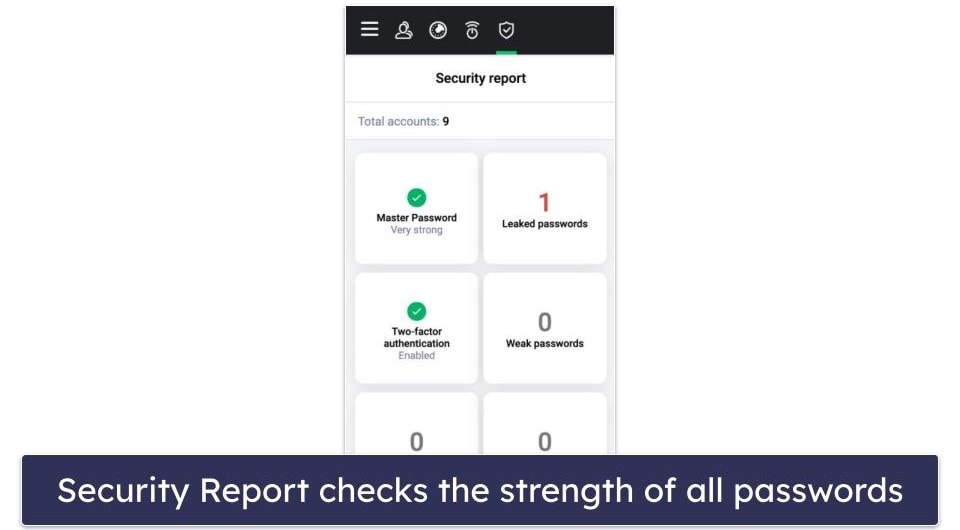
Total Password uses 256-bit AES encryption and a zero-knowledge protocol to guarantee the security of your data. It also includes a pretty good Security Report feature that capably identifies weak and compromised passwords (but it’s not quite as good as 1Password’s Watchtower feature).
I like how well Total Password integrates with Microsoft Edge — offering a straightforward setup process. After payment and account creation, you simply download the Edge extension, and you’re ready to go. Despite the lack of a web dashboard and minor drawbacks like unsuccessful data imports from other password managers, its excellent auto-fill and auto-save functions work perfectly on Edge.

Furthermore, pricing for Total Password is pretty reasonable, with the individual plan costing $1.99 / month. This plan includes multi-device synchronization, password history, security auditing, and data breach monitoring. You can also get Total Password as part of TotalAV’s Total Security suite for $49.00 / year, which is an integrated solution for users seeking password management, malware protection, an unlimited-data VPN, and more. A 30-day money-back guarantee covers both plans.
Bottom Line:
Total Password is an excellent choice for Microsoft Edge users seeking a secure, user-friendly password manager. While there are areas for improvement, its strong security features and straightforward interface make it a worthwhile competitor in password management.
Read the full Total Password review
Quick Comparison Table
How to Choose the Best Password Manager for Edge in 2026
- Prioritize security. Always select a password manager that prioritizes your security. In our rigorous testing, we evaluated the security protocols of top brands like 1Password and RoboForm to ensure your peace of mind. Both password managers worked really well.
- Go for user-friendly interfaces. Look for a password manager that offers an intuitive and easy-to-use interface. We put the browser extensions and desktop apps of each brand to the test, ensuring that features like password saving, auto-filling, and form filling were a breeze. You’ll love the user-friendly interfaces of 1Password and NordPass.
- Look for advanced features. Find a password manager offering a wide range of advanced features. Our comprehensive testing uncovered standout features like dark web monitoring, secure file storage, encrypted messaging apps, and VPNs.
- Consider cross-platform compatibility. Choose a password manager that seamlessly works across all your devices and platforms.
- Evaluate pricing and plans. Review the pricing and plans offered by each brand to find the best value for your needs. Look for plans that offer unlimited password storage, multi-device syncing, and additional features like password sharing and secure file storage.
Top Brands That Didn’t Make the Cut
- Sticky Password. While Sticky Password offers some useful features like dark web monitoring, local data storage, and a portable USB version of the program, it falls short in comparison to top brands like 1Password and Dashlane. It lacks secure file storage and unique extras offered by other competitors.
- Avira Password Manager. Avira has unlimited password storage but lacks advanced 2FA options, password-sharing capabilities, and secure password importing. It doesn’t match the well-roundedness of top competitors like RoboForm.
- Password Boss. Password Boss is user-friendly with features like secure password sharing and customizable emergency access. However, it doesn’t offer the same level of functionality as top competitors.
Frequently Asked Questions
Is it safe to use a password manager?
Absolutely! Using a password manager like 1Password or RoboForm is one of the safest ways to manage your passwords.
These password managers use advanced encryption to securely store your passwords, making sure they stay protected from prying eyes. With extra layers of security like two-factor authentication and data breach monitoring, you can trust that your accounts are well-guarded against potential threats.
Plus, the best part is that you can effortlessly create strong and unique passwords for all your accounts without the fear of forgetting them or compromising your security. So go ahead and let a password manager take the stress out of password management.
How does a password manager work?
Top password managers securely store your passwords in an encrypted vault. When you visit a website or app, the password manager automatically fills in your login credentials, saving you time and effort.
All you need is a master password or biometric authentication to unlock your vault and access your stored passwords. Some password managers even offer helpful features like password generators to create strong passwords and password auditing to identify any weak or duplicate ones.
Can a password manager be hacked?
No system is 100% hack-proof, but reputable password managers prioritize your security. They employ strong security measures like unbreakable encryption and strict protocols to protect your data.
Your master password is never stored on the provider’s servers, adding an extra layer of protection. However, it’s important to choose a trusted password manager — like the ones on my list. Remember to also keep your software up-to-date and follow good security practices to minimize any potential risks. It’s also a good idea to invest in a high-quality antivirus package alongside your password manager to ensure maximum protection.
Are password managers compatible with multiple devices?
Password managers are designed to work seamlessly across multiple devices. You can install browser extensions on your desktop or laptop computers, enabling access to your passwords whenever you’re browsing the web.
Additionally, most password managers have mobile apps for smartphones and tablets, ensuring that you can easily manage your passwords on the go. By using the same password manager on all your devices, you can enjoy the convenience of syncing your passwords across platforms.
Can I share passwords with others using a password manager?
Yes, many password managers offer secure password sharing features — whether you need to share account credentials with family members, colleagues, or friends. They use encryption to protect the shared passwords, ensuring that only authorized individuals can access them.
Some password managers (including RoboForm) even allow you to control the access levels of recipients, giving you peace of mind and maintaining control over your shared passwords.