
Published on: July 15, 2021 Updated 26 times since publishing
- 🥇 RoboForm : Powerful iOS app with top-notch security and versatile features, including password auditing, passkey support, and secure password sharing. It’s easy to use, syncs across unlimited devices on paid plans, offers a free plan and a 30-day money-back guarantee, and provides excellent value for both individual and family users.
I tested every password manager on the Apple App Store to find the best ones for iOS. I looked for apps with great security, intuitive interfaces, and more functionality than iCloud Keychain and Passwords (Apple’s built-in password managers). During my tests, I learned that most products offered very little or no improvement over iCloud Keychain and Passwords. Some couldn’t sync my password vault across all my devices, some failed to auto-fill my login credentials, and others were too difficult or expensive.
However, I found a few password managers that are better than Keychain or Passwords. The iOS password managers on this list provide tight security and a range of valuable extras. Plus, they’re easy to use: they seamlessly sync passwords across devices, browsers, and operating systems, and they let users securely share both passwords and other sensitive data, like notes or bookmarks.
So, which password manager is right for you? My top pick is RoboForm, thanks to its excellent form-filling on iOS (and other OSs) and strong security. But all the other apps on this list are worth checking out. Whether you’re looking for excellent family sharing, a reasonable budget plan, or an advanced product with dark web monitoring and a VPN, you’ll find something to fit your needs.
Quick Summary of the Best Password Managers for iOS


🥇1. RoboForm — Best Overall Password Manager for iOS
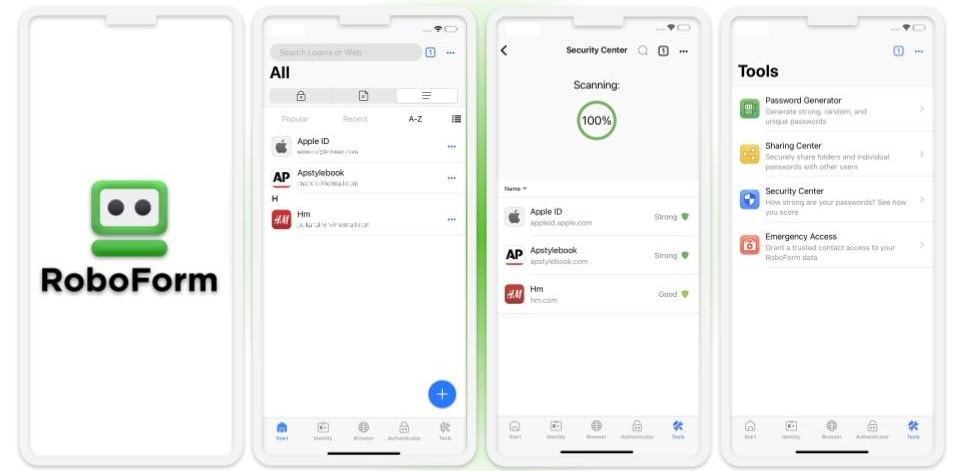
RoboForm is one of the best iOS password managers, especially for users who want flawless form-filling and easy data management on iPhone. It offers the most advanced auto-fill system I’ve tested, with built-in templates for personal details, addresses, passports, bank accounts, vehicles, and more, plus support for custom forms. In my tests, RoboForm filled even complex insurance and registration forms in a single tap without missing fields — a huge time-saver on mobile since you won’t have to use the tiny smartphone keyboard.
- Excellent form-filling
- Bookmark storage & sharing
- Unlimited folder organization
- Affordable pricing
- Less polished interface
RoboForm also comes with:
- 2FA compatibility with TOTP apps and biometric logins.
- Password auditing.
- Password, note, and bookmark sharing.
- Secure browser.
- Emergency access.
- Cloud backup.
- Batch logins.
Sharing is well implemented and secure on iOS. You can share individual logins, notes, or bookmarks, as well as up to two shared folders, with granular permission controls. This includes view-only access, full editing rights, or login-only access that lets recipients sign in without seeing the password.

Vault organization on iOS is another strong point. You can create unlimited folders and subfolders, clone logins across multiple locations, and easily keep shared items in sync. If you update a cloned entry, RoboForm prompts you to synchronize the changes everywhere else, which is extremely useful for teams and families. The interface is functional rather than flashy, but it’s efficient for managing large vaults on a small screen. Search is fast, categories are clear, and editing entries on iPhone is straightforward.
RoboForm’s iOS app includes a built-in browser that’s instantly accessible from the app’s home screen. The browser is just as easy to use as Safari for iOS, but it enables auto-fill, auto-save, password generation, and bookmark saving (RoboForm doesn’t save bookmarks in other iOS browsers). Honestly, I’m a big fan of RoboForm’s secure bookmark sharing feature. I could sync bookmarks across all of my devices and share them with other RoboForm users on a variety of different browsers. While iCloud can sync bookmarks, too, I found it a lot easier to do so on RoboForm.

RoboForm includes all essential security features: 256-bit AES encryption, zero-knowledge architecture, biometric unlocking via Face ID and Touch ID, 2FA with authenticator apps, passkey support, password health auditing, emergency access, secure notes, and cloud backup. Aside from iOS, it also works on Android, Windows, and macOS, making it easy to manage and share data across platforms.
Pricing is another reason RoboForm ranks among the best iOS password managers. It’s one of the most affordable premium options available on the market (often starting around $0.99 / month on the annual plan), while RoboForm Family covers up to 5 users at a similarly low cost. It also offers a free plan for single-device use, and backs all paid plans with a 30-day money-back guarantee. This makes it a low-risk choice for iPhone users who want advanced features without paying premium prices.

Bottom Line:
RoboForm is one of the best and simplest iOS password managers, combining industry-leading form-filling accuracy with strong security and excellent value. It uses pre-built identity templates and custom fields to auto-fill even complex forms flawlessly on iPhone, includes a built-in secure browser with bookmark storage and sharing, and offers powerful vault organization with unlimited folders and cloning. Security is robust, with 256-bit AES encryption, and it works seamlessly on iOS and other OSs. It offers a free plan and its paid plans are backed with a 30-day money-back guarantee.
Read the full RoboForm review here >
🥈2. 1Password — Intuitive iOS App With Advanced Features
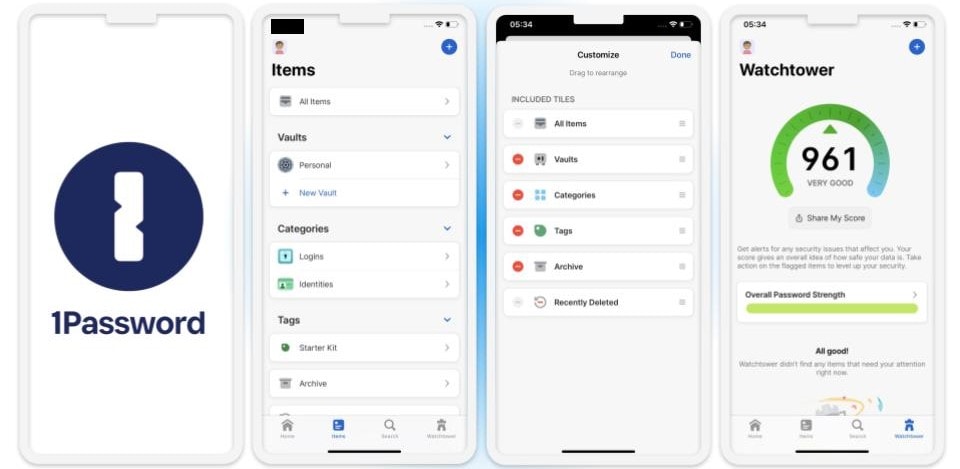
1Password packs many features into an intuitive iOS app, letting you auto-fill passwords and personal information in just a few taps. It works especially well on iPhone and iPad, making password management quick and natural. It’s very easy to set up biometric logins with iOS’s Touch and Face ID, and I like that 1Password lets you access passwords and unlock your vault using an Apple Watch — something most password manager apps don’t allow.
- Intuitive controls
- Apple Watch support
- Unique Travel Mode
- Multiple vaults
- No traditional emergency access
Beyond the basic security features of Apple’s Passwords app (like 2FA and password auditing), 1Password’s iOS app includes:
- Family sharing dashboard (Families plan).
- Hidden vaults (Travel Mode).
- 1 GB encrypted storage.
- Email masking.
- Location-based passwords.
- Privacy Cards (US users only).
- And more…
One cool thing about 1Password’s iOS app is that you can create multiple vaults, so it’s easy to organize logins for different purposes. I set up a family vault for sharing Netflix and Amazon passwords (even with non-iOS devices) and a personal vault for sensitive data like banking details and passport documents. You can also tag vault items with locations (e.g., home or office) for quick access to context-specific credentials, such as Wi-Fi passwords.
Watchtower, 1Password’s auditing tool, checks passwords for strength and originality while monitoring dark web forums and breach databases for compromised credentials. It also flags 2FA-compatible logins, syncing with 1Password’s built-in TOTP generator to auto-fill one-time passwords, boosting account security.
I’m also a fan of Travel Mode, a unique feature that lets you hide certain vaults (when crossing borders). Enabling Travel Mode is easy, but it has to be done from 1Password’s website, not the app itself. 1Password doesn’t show a change in status when this feature is enabled, so no one can know you’ve actually hidden any vaults.

1Password supports passkeys on iOS, letting you log in with biometrics or a PIN instead of traditional passwords, and you can view, share, edit, or delete passkeys. It also offers Privacy Cards for generating virtual payment cards, which helps protect your real card details if a merchant is breached — though this feature is limited to US users. While 1Password doesn’t have a built-in emergency access feature, it does provide an Emergency Kit (a downloadable PDF with vault access details) that you can share with a trusted contact.
1Password is an excellent choice for multi-platform users, with smooth support across iOS, Android, Windows, macOS, and Linux. Its pricing is competitive, too: 1Password Individual (starting at $2.99 / month) includes all features and is a great value for solo users, while 1Password Families (starting at $4.49 / month) adds a family dashboard with granular sharing controls and covers up to 5 users (like RoboForm), with the option to add more for a small fee.

Bottom Line:
1Password is an excellent password manager with one of the best iOS apps I’ve seen. It’s very easy to use, provides biometric login and Apple Watch compatibility, and comes with many unique and handy extras. 1Password Individual is available for an affordable monthly subscription, and 1Password Families is a really good value for multiple users. You can try 1Password risk-free with a 14-day free trial.
Read the full 1Password review here >
🥉3. Keeper — Best Security Features for iOS
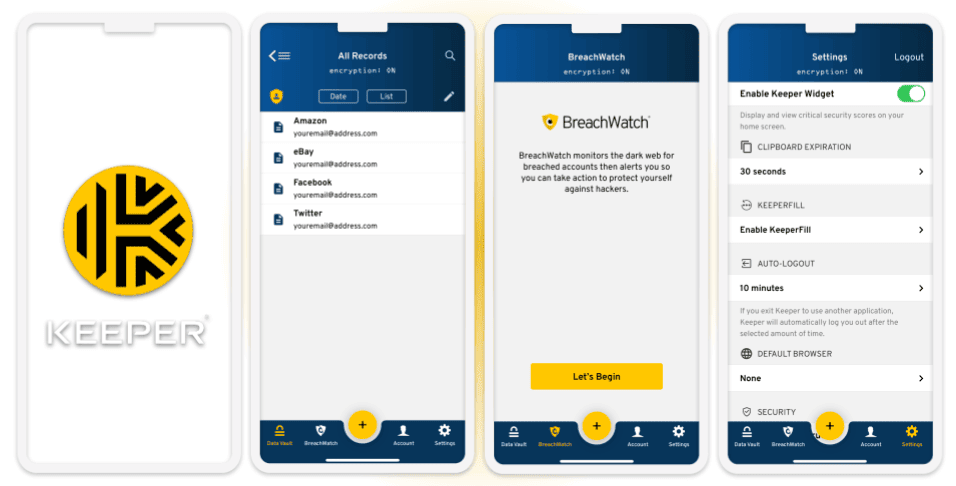
Keeper offers advanced security features that outpace most iOS password managers, including unbreakable 256-bit AES encryption, a zero-knowledge architecture, multiple authentication layers, and SOC compliance (meaning it undergoes regular audits to ensure your data stays fully protected). It also supports a wide range of login options: you can enable 2FA with one-time passwords sent to your Apple Watch, use your Watch’s biometric scanner, or unlock your vault with Face or Touch ID on Macs and iPhones, making secure access fast and convenient.
- Advanced 2FA options
- KeeperChat encrypted messenger
- One-time password sharing
- Dark web monitoring
- Cloud storage requires a paid add-on
- Dark web monitoring requires a paid add-on
Keeper also offers a wide range of 2FA options — I really like the 2FA login feature, which lets you send one-time passwords to an Apple Watch to enhance your login security. I also like how you can log into Keeper with your Apple Watch’s biometric scanner. It also supports Face ID and Touch ID, making accessing your vault on both Macs and iPhones really easy.
Keeper comes with some great extra features, including:
- Encrypted messenger (KeeperChat).
- Dark web monitoring.
- Up to 100 GB cloud storage (paid add-on).
- Password sharing.
- Password auditing.
- Emergency access.
KeeperChat provides encrypted messaging, image, and video sharing. I like that KeeperChat allows users to set up group chats like WhatsApp and Telegram. KeeperChat also includes a self-destruct option, where you can set a timer for sensitive messages to be deleted after a predefined period. More importantly, it’s an excellent way for iOS users to communicate with non-iOS users. When you send messages to non-iOS users using iMessage, your messages aren’t encrypted. Keeper encrypts messages regardless of what device the recipient is using.

One of Keeper’s standout features is its One-Time Share function. From the iOS app, Keeper users can temporarily share passwords, files, payment card details, or other items via AirDrop or by sending a secure link without the recipient needing a Keeper account. Recipients can then open the shared link to view and use the shared item for a limited time (set by the sender). This is a big improvement over Apple’s Passwords app, which only lets you share passwords with other iOS users and doesn’t provide the option to set an expiry period for them.

Keeper’s password vault is also really good, with unlimited password storage and extensive organization features (like unlimited folders and customizable views). And its password generator is among the most customizable ones I’ve tested.
Keeper Personal ($1.79 / month) comes with unlimited password storage, syncing across multiple devices, advanced 2FA, and emergency access. Keeper Family ($3.83 / month) adds up to 5 licenses and 10 GB cloud storage. You can also separately purchase up to 100 GB of encrypted storage and dark web monitoring. Additionally, Keeper’s cross-platform compatibility allows you to easily manage your passwords inside and outside the Apple ecosystem.

Bottom Line:
Keeper is a highly secure iOS password manager with many advanced cybersecurity protections — it has multiple 2FA options, one-time password sharing, emergency access, dark web monitoring, and Apple Watch integration. It also offers an encrypted messaging app, and it provides more cloud storage than any other password manager. You can try Keeper’s premium features with a 30-day free trial.
Read the full Keeper review here >
4. Dashlane — Excellent iOS Integration & Extra Features
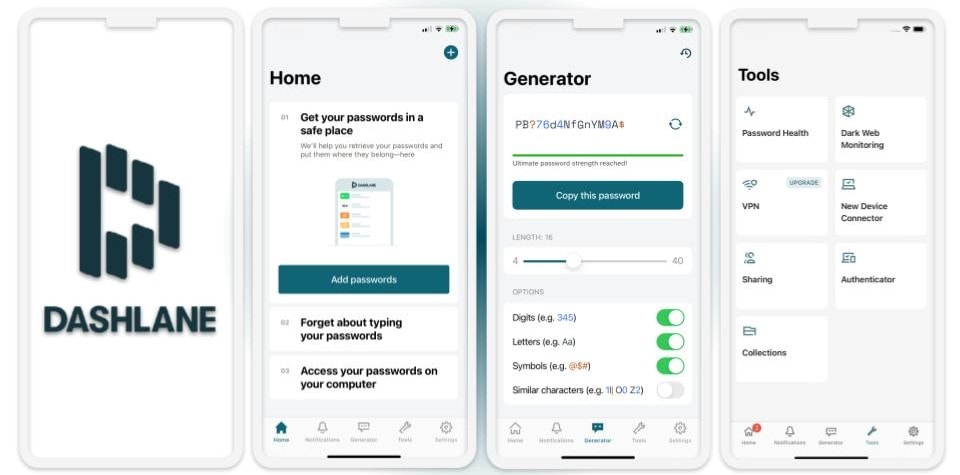
Dashlane is highly secure, and it integrates perfectly with iOS. Despite its advanced features, it’s very easy to use, so you’ll have no issues even if you’ve never used a password manager app.
- Unlimited-data VPN
- Live dark web monitoring
- Voice Control compatibility
- Phishing alerts
- More expensive than the competition
- VPN is restricted to Family admin
The ease of use is particularly impressive when you consider the range of additional features Dashlane offers:
- Unlimited password sharing.
- VPN (virtual private network).
- Passkey support (iOS 17 and later).
- Biometric login and account recovery.
- Dark web monitoring.
- Phishing alerts.
- Voice Control compatibility.
- Identity theft protection (US only).

Dashlane lets you share passwords with unlimited Dashlane users regardless of the operating system they’re using — even on the free plan! It’s the only free plan on my list to offer sharing with unlimited users.
I like that Dashlane has an Apple Watch app that lets you view your 6-digit 2FA tokens if logged into Dashlane on your iPhone.
Dashlane is also the only password manager to include a VPN. Powered by Hotspot Shield, it provides secure, encrypted web access to servers around the world with almost zero connection slowdown.
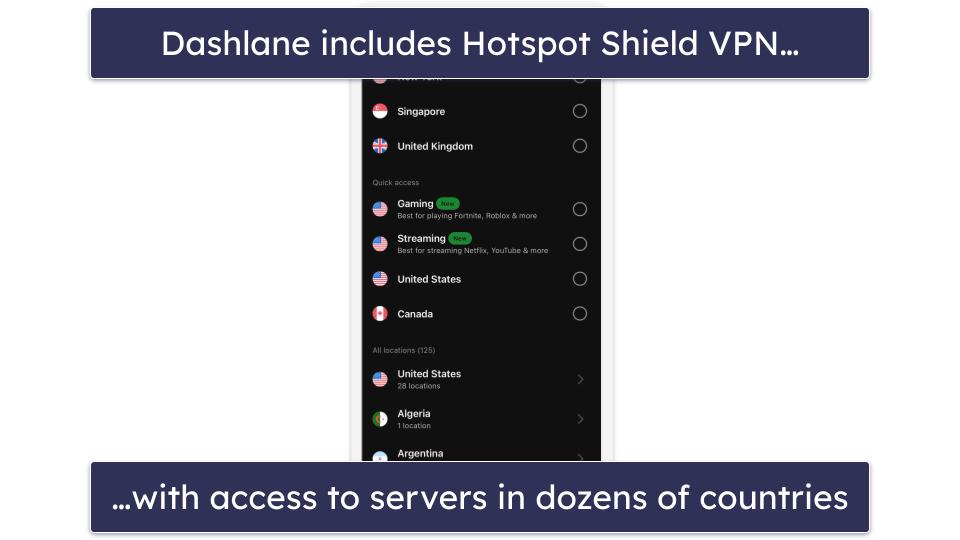
Dashlane works across iOS, Android, Windows, and macOS, so you can manage passwords and stay connected with your circle no matter their devices.
Dashlane Premium ($5.42 / month) includes all the above features for a single user. Dashlane also offers a Friends & Family plan ($8.13 / month) that gets you 10 accounts, which is pretty generous considering most competitors limit you to up to 6 users. The only limitation is that the VPN is restricted to the plan admin account. There’s also an excellent free plan. While it only offers storage for 25 logins, it comes with a ton of security extras, including password sharing with an unlimited number of Dashlane users, password security auditing, data breach alerts, 1 GB of file storage, and more.
Bottom Line:
Dashlane offers advanced security, and it’s got heaps of extra features, like live dark web monitoring and a VPN (it’s the only password manager on my list with a VPN). It also integrates seamlessly with iOS — it’s compatible with Apple Watch and Voice Control, and it offers biometric login and account recovery. Dashlane Free comes with a 30-day free trial of Dashlane Premium, and all of Dashlane’s paid plans have a 30-day money-back guarantee.
Read the full Dashlane review here >
5. Proton Pass — Privacy-First Password Manager With Generous Secure Storage

Proton Pass is a highly secure password manager that integrates smoothly with iOS. It’s very easy to use, with a clean interface that makes it accessible even if you’ve never used a password manager before.
- Email aliases with custom domains
- Up to 50 vaults
- 10 GB encrypted storage
- Less extras than top competitors
Here are some key features you get:
- Encrypted storage. 10 GB for individuals and 50 GB for families.
- Vault sharing. Share up to 10 vaults with up to 10 people, whether they’re Proton users or not.
- Alerts for weak/reused passwords. Provides warnings if a password is too weak or used across multiple accounts.
- Email aliases (via SimpleLogin integration). Create unlimited aliases with custom domains and reply to emails from them.
During my tests on iPhone, Proton Pass worked seamlessly with Safari, filling in logins and payment details instantly and without errors. I also liked its support for passkeys, which let me log in to apps and websites without relying on traditional passwords. Unlike Apple’s built-in Passwords app, Proton Pass supports secure vault sharing across platforms, making it easy to collaborate with family or colleagues even if they’re not on iOS. Proton lets you create up to 50 vaults, and you can add logins, credit cards, secure notes, and more.

Another standout is email aliasing, powered by Proton’s SimpleLogin service. This allows you to generate unique email addresses for different services, which protects your real address from spam and phishing. Proton Pass also provides detailed password health checks, helping you quickly spot weak, reused, or compromised logins.

Proton Pass Plus ($2.49 / month) adds unlimited aliases, file attachments, and 10 GB of encrypted storage. The Family plan ($4.99 / month) expands this to 6 users and 50 GB of storage, making it one of the more generous options available — only Keeper offers more storage on its family plan, but you have to pay extra for it. If you’re already a Proton Mail or Proton VPN subscriber, Proton Pass integrates smoothly with the rest of Proton’s ecosystem.
Bottom Line:
Proton Pass is one of the most secure and privacy-focused password managers for iOS in 2026. It combines smooth Safari integration with advanced features like passkey support, vault sharing, and email aliasing. It’s an excellent choice for iPhone and iPad users who value privacy and seamless performance.
Read the full Proton Pass review >
6. NordPass — Intuitive and Easy-to-Use iOS Interface

NordPass is one of the most user-friendly iOS password managers on this list — its streamlined interface makes generating and auto-filling passwords easy, and it integrates well with iOS’s biometric login system. That said, I’d love to see NordPass add Apple Watch compatibility like 1Password has.
- Beginner-friendly
- Email masking
- Good data breach monitoring
- No emergency access on iOS app
- No Apple Watch compatibility
NordPass uses an excellent encryption method (called XChaCha20). This is different from most competing password managers (which use 256-bit AES encryption), but there’s no concrete evidence to prove XChaCha20 is stronger than 256-bit AES — hackers haven’t cracked either method.

Similar to competitors like RoboForm and 1Password, NordPass has many of the features I expect to see in a premium iOS password manager, such as 2FA, biometric logins, password auditing, data breach monitoring, and secure password sharing. Like 1Password, it includes masked emails, which reduce the risk of being exposed to spam and phishing attempts. You can generate up to 200 masks (30 daily) with NordPass Premium.
NordPass’s vault auditing and data breach monitoring features worked pretty well in my testing and detected all of my weak and repeated passwords. They also identified multiple instances where my test email was leaked in the last few years.

However, NordPass for iOS lacks emergency access, a feature included in the Windows and Android apps, which is disappointing. Competitors like RoboForm have emergency access in their iOS versions.
NordPass is compatible with iOS, Android, Windows, and macOS, allowing for effortless password management and sharing across different devices. The free version offers a good number of features, including unlimited password storage, multi-device sync, and biometric logins — but you can only use it on 1 device at a time. NordPass Premium covers unlimited devices simultaneously, and it includes extra features like password sharing and email masking for $1.49 / month (on the 2-year plan). NordPass Family is the same, but it covers up to 6 users for $2.79 / month.
Bottom Line:
NordPass is a secure and easy-to-use iOS password manager. It uses the advanced XChaCha20 encryption algorithm and has good vault auditing and dark web monitoring features. However, the iOS version lacks features like emergency access. NordPass Free offers unlimited password storage and biometric 2FA support, but the Premium and Family plans add password sharing, email masking, and password auditing. NordPass comes with a 30-day free trial, and you can test it out with a 30-day money-back guarantee.
Read the full NordPass review here >
7. Avira Password Manager — Best for Ease of Use
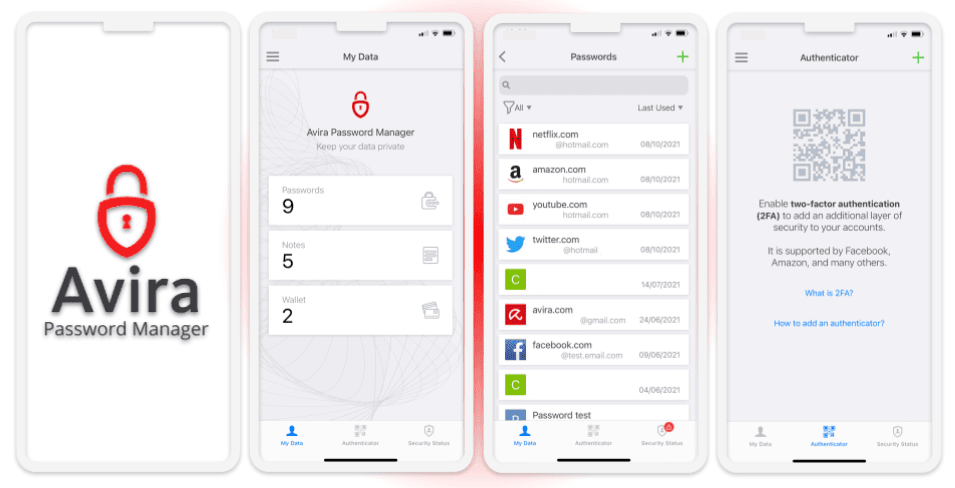
Avira Password Manager is intuitive and secure. It offers unlimited password storage across unlimited devices on its free plan — making it one of the most generous free plans on this list after Proton Pass.
- Easy biometric login
- Built-in 2FA authenticator
- Straightforward to organize entries
- Limited extra features
- Lacks passkey support
Avira is one of the most streamlined iOS password managers, seamlessly generating, saving, and auto-filling passwords in all my tests. It also integrates well with iOS’s biometric authentication systems (Touch ID and Face ID) — you only need to scan your fingerprint or face to access your Avira password vault.
Avira Password Manager includes a 2FA authenticator, 1 GB of secure storage, password auditing, and data breach monitoring (the latter two on the paid plan).

One of my favorite features is the built-in authenticator tool. During my tests, I found this tool very easy to set up. I only had to scan the QR codes provided by 2FA-compatible sites using my iPhone’s camera, and Avira automatically generated a new temporary one-time password for those sites every 30 seconds.
I also like that you can practically use Avira as a secure wallet, storing your important documents, images, notes, credit card info, and more (up to 1 GB). You can also easily organize them by adding titles and tags.
While I like Avira’s simplicity and ease of use, I’d like to see it offer more unique features (like Dashlane’s VPN and 1Password’s virtual payment cards). That said, it does provide password auditing, which is pretty useful!

Avira Password Manager is fully compatible with iOS, Android, Windows, and macOS, so you can manage your passwords across your iOS and non-iOS devices. The free plan is pretty good, but upgrading to Avira’s paid password manager ($2.66 / month) gets you excellent password vault auditing and data breach monitoring tools, which allow you to check the security of your passwords and online accounts and quickly change your passwords in case of a breach. If you want to extend your protection, consider Avira’s comprehensive Prime antivirus package, which costs $59.99 / year and includes premium antivirus protection for up to 5 devices (Avira is one of the best antiviruses in 2026).
Bottom Line:
Avira Password Manager is user-friendly and secure, with a robust free plan and an affordable premium version. It offers multi-device sync and biometric logins with its free plan. The paid plan adds password vault auditing and data breach monitoring. You can get Avira Password Manager as a standalone app or bundle it with the Avira Prime package (Avira’s premium antivirus suite). There’s a 60-day money-back guarantee on all yearly plans.
Read the full Avira Password Manager review here >
8. Total Password — Simple & Secure Password Management for iOS
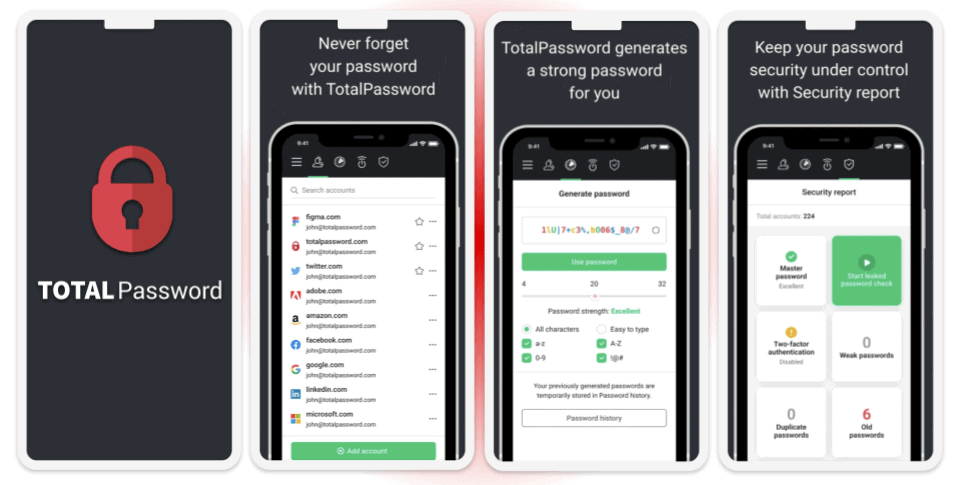
Total Password’s strong security features and user-friendly design make it a reliable tool for managing passwords and confidential data on any device.
- Remote logout and location tracking
- Easy-to-use
- Unlimited-data VPN
- No password sharing
- No passkey support
In addition to 2FA, password audits, data breach alerts, and a password generator with password history, Total Password offers a unique feature called Secure Me — which allows you to log out from all devices remotely. Secure Me also integrates with Google Maps, showing you a visual representation of locations where your vault has been accessed. This feature is useful for identifying potential unauthorized access if you notice logins from unfamiliar places. However, the location tracking is not very precise.

Total Password’s browser extensions and mobile apps are intuitive. However, it falls short in terms of data importing from other password managers, which could be a concern if you’re considering switching services.

Total Password offers a single plan that includes functions like multi-device synchronization, password history, security audits, and data breach notifications. Though it might lack some features compared to competitors, it provides excellent value for its cost at $1.99 / month and includes a 30-day money-back guarantee. You can also get Total Password as part of TotalAV Total Security. This plan costs $49.00 / year and comes with TotalAV’s full-featured antivirus suite to protect your PC and Mac alongside your iOS device. It also offers an unlimited-data VPN, ad blocker, and more, making it a pretty good deal overall.
Bottom line:
Total Password is an excellent choice for iOS users seeking a simple, secure password manager. Despite having fewer extra features than some competitors, it excels in its primary function — secure password management. Its auto-fill and auto-save functions work well, and important security features like 2FA, breach monitoring, and password auditing are included.
Read the full Total Password review
9. Sticky Password — Good Premium Plan With Local Storage
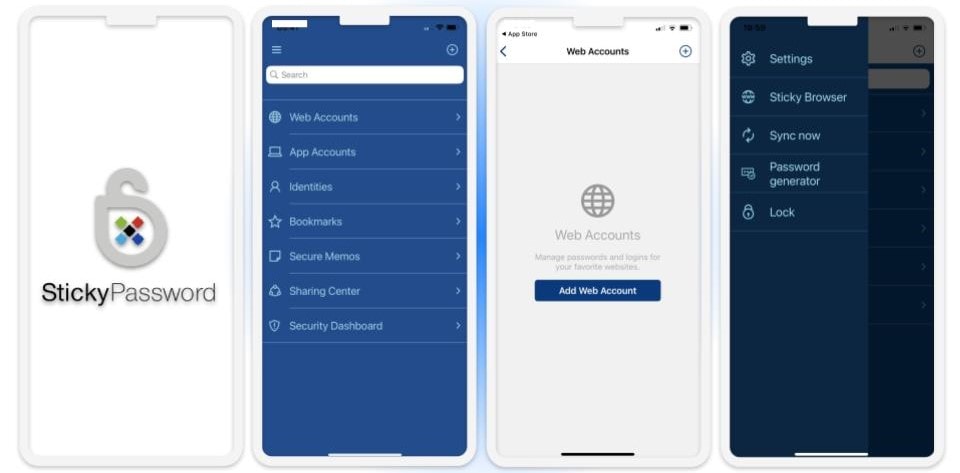
Sticky Password is a basic password manager, but it has some nice extra features, including local data storage. You can choose whether to store and sync your data in its cloud or on your own device. This is a welcome alternative for Apple users who are reluctant to store their passwords and other sensitive data in iCloud (or a similar service).
- Local storage & Wi-Fi sync option
- Log in by scanning a QR code
- Lifetime license option
- No passkey support
- Fewer features than competitors
Sticky Password uses 256-bit AES encryption to secure user databases in the cloud, which is great for most users. But if you’re extra security-conscious, it’s nice having the option to sync across your devices over a local Wi-Fi network — I was able to sync my passwords from my Mac directly to my iPhone and iPad using my private Wi-Fi network, and it was just as fast as syncing via Sticky Password’s cloud servers.

Sticky Password also includes Contactless Connect, which lets iPhone users log into websites on shared computers, like a work PC, by scanning a QR code with the Sticky Password app — no software installation required. I tested it to access a work portal securely, and its end-to-end encryption left no traces, ideal for shared office setups.
While Sticky Password doesn’t have as many features as some top brands like 1Password, its iOS app does come with a few notable extras, including identity and payment card details storage, secure notes, secure browser, and dark web monitoring. Its mobile app is also easy to use, with a clean and simple interface, and its essential password management features — including password generation and auto-fill — work well. I also like how you can use it to store sensitive information, not just passwords, securely.

Sticky Password Premium ($29.99 / month) includes all of its features for a single user, and it’s a pretty good value. I also like that Sticky Password donates part of the profits from each premium license to the Save The Manatee Club — a non-profit dedicated to manatee conservation. There’s a free plan, too, that includes unlimited passwords on 1 device, two-factor authentication, secure notes storage, and a portable USB version.
Bottom Line:
Sticky Password has all the basic password management tools, plus extras like local data storage and dark web monitoring. The free plan comes with a 30-day free trial of Sticky Password Premium, and all purchases have a 30-day money-back guarantee. Plus, each premium purchase benefits the Save the Manatee Club — a bonus for animal lovers!
Read the full Sticky Password review here >
10. Password Boss — Well-Designed iOS App With a Decent Range of Features
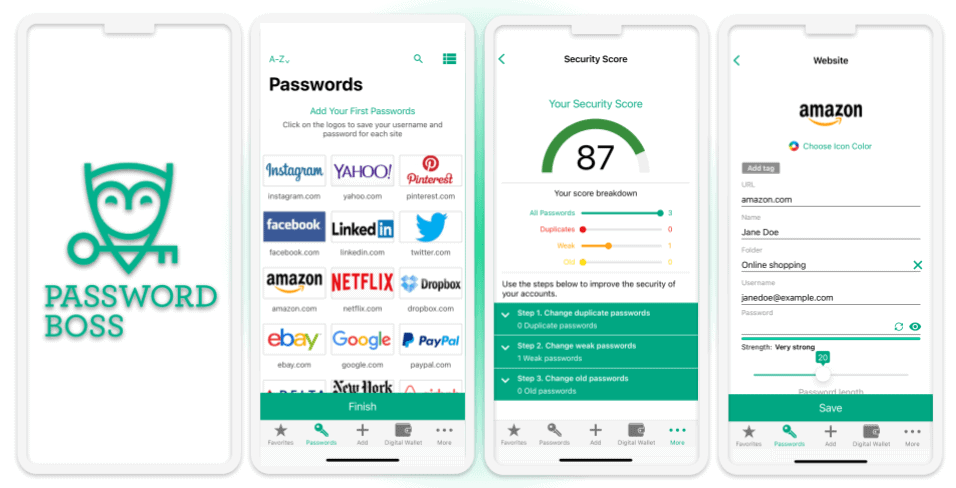
Password Boss is secure, feature-rich, and easy to use. It comes with all of the basic password management features, including unlimited storage, syncing across multiple devices, and 2FA. It also has useful extra features like a secure browser, a built-in two-factor authenticator, and a remote delete feature.
- Secure browser
- Remote delete anti-theft feature
- Intuitive iOS app
- Lacks dark web monitoring
- Lacks passkey support
Password Boss has a good range of features that are well-designed and work as promised, but I’d still like to see additional features like live dark web monitoring or passkeys (these extras are offered by top competitors like Dashlane and 1Password).

However, I do like that Password Boss supports biometric logins — you can log into your account with Face or Touch ID instead of typing in your master password. It also lets you choose a 4-digit PIN code for logging in.

Password Boss’s premium plans let you sync passwords and payment details across unlimited devices (even those on different operating systems) and share unlimited passwords, and they start at $2.99 / month. You can try Password Boss Premium with a 30-day free trial that comes with the free version or with a 30-day money-back guarantee. The free plan lets you store your passwords locally on one device.
Bottom Line:
Password Boss is a secure password manager with a good set of features. These include unlimited storage, syncing across multiple devices, two-factor authentication, secure password sharing, password security auditing, and emergency access. Password Boss is easy to use, and the iOS app is intuitive. It offers a limited free version, and there’s a 30-day free trial and a 30-day money-back guarantee for all paid plans.
Read the full Password Boss review here >
Bunus. Bitwarden — Open-Source With Budget-Friendly Pricing
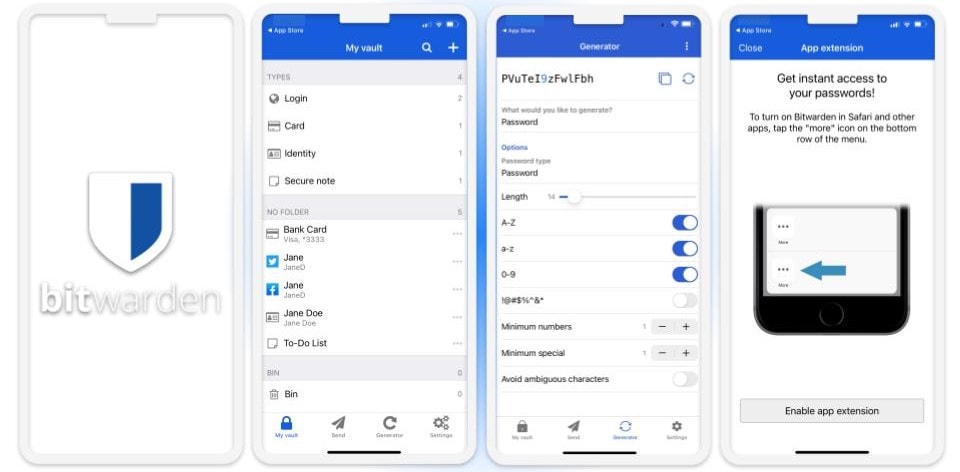
Bitwarden is a secure open-source password manager that offers a free plan with unlimited password storage and a very affordable paid plan that costs only $1.00 / month. It has all the security tools I’d expect in a premium password manager, including 2FA, password auditing, and breach monitoring. Plus, there’s the option to store passwords locally or in the cloud.
- Local or cloud storage options
- Open-source
- Masked email
- Tricky sharing process
- Less intuitive interface
When I tested Bitwarden’s app on my iPhone, I found it integrated really well with iOS. All my passwords synced easily between my desktop and phone, and I had no trouble setting up Bitwarden to auto-fill my passwords. I tried the auto-fill function in the Safari iOS app, and it worked perfectly — I could log into all of my accounts without any issues.

However, Bitwarden isn’t as easy to use as other top password managers like RoboForm. Sharing passwords is tricky because Bitwarden uses Organizations to create a shared vault, and you can only share with one other person. Additionally, the interface isn’t intuitive.

Bitwarden’s masked email feature lets iPhone users generate unique aliases via services like Fastmail or DuckDuckGo, protecting your real email from breaches and spam, perfect for online subscriptions. Additionally, Bitwarden also functions across all popular operating systems — Windows, macOS, and Android — so you can manage and share your passwords across your non-iOS devices.
Bitwarden Free includes unlimited password storage across unlimited devices, passkey support, unlimited password sharing with 1 user, and 2FA compatibility with TOTP authenticators like Authy. Bitwarden Premium adds vault auditing tools, a built-in 2FA authenticator, and 1 GB of encrypted storage.
Bottom Line:
Bitwarden is a highly secure password manager with much cheaper plans than competing brands. It’s an open-source product, and it offers local data storage. Bitwarden isn’t as user-friendly as Dashlane, but it’s a good choice if you’re tech-savvy and want a feature-rich budget option.
Read the full Bitwarden review here >
Bonus. Norton Password Manager — Great Free Option With an Intuitive iOS App
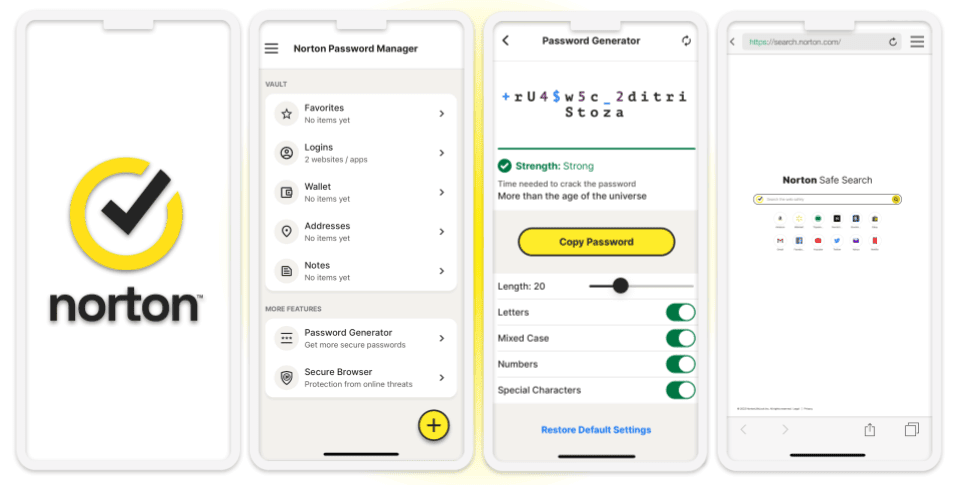
Norton Password Manager is a good free password manager with an intuitive iOS app. It has all of the essential features, including auto-fill, a password generator, secure note storage, as well as unlimited password storage.
- Free with unlimited password storage
- Mobile unlock authentication
- Intuitive iOS app
- No dark web monitoring
- Limited features
Norton Password Manager also comes with a few extra features:
- Secure browser.
- Auto-save capabilities (within Norton’s Secure Browser).
- Mobile unlock authentication (a form of 2FA).
- Randomized keypad option for PIN code unlocking.
- Clipboard clearing options.

Norton’s Secure Browser worked well when I tested it. The mobile unlock feature (a form of 2FA) also worked well — it enabled me to use my iPhone to authorize access to my Norton Password Manager vault when logging in via my desktop browser.

You can download Norton’s password manager for free, but if you want access to extras like live dark web monitoring, a VPN, and other iOS security protections, it’s worth trying one of Norton’s premium antivirus plans. Norton Mobile Security for iOS is just $19.99 / year*, but if you want to protect all of your devices, including iOS, Mac, Windows, and Android, Norton’s 360 Deluxe plan ($49.99 / year*) is one of the best options on the market.
Bottom Line:
Norton is a great free password manager for both iPhones and iPads. It has a good range of features, although it doesn’t quite compare to top brands like 1Password, Keeper, or RoboForm. That said, if you want to access extras like dark web monitoring, a VPN, and iOS protections, you can try one of Norton’s premium security plans.
Read the full Norton Password Manager review here >
Quick Comparison Table
Testing Methodology: Comparison & Ranking Criteria
To come up with this list of the 10 best password managers, I used our testing methodology, which includes clear-cut criteria for assessing all relevant password manager features. In addition to that:
- I only included iOS password managers that offer solid security features. A good password manager needs to use 256-bit AES or similar unbreakable encryption to keep your information completely secure. Additional security features like 2FA, password vault auditing, and dark web monitoring are also important. In my list, I only included apps with enough tools or security features to keep iOS devices and data as secure as possible — think RoboForm and 1Password’s independent audits or Bitwarden’s open-source transparency.
- I compared each password manager with iCloud Keychain and Passwords. I made sure the apps I selected offer more than Apple’s built-in password managers in terms of features, security, and ease of use, while functioning on iOS devices as well.
- I tested the apps to see if they’re easy to use. Password manager iOS apps should be easy to set up and use, and they should seamlessly sync across devices. All my picks enable biometric login on iOS, and many offer the same option on Mac, too.

- I looked for extra features. I checked if the password manager offers additional security tools, such as encrypted storage, advanced form-filling, a VPN, encrypted messaging, and emergency access. I took the time to examine each of these features to verify that they truly offer added value — like Dashlane’s VPN for safe iPhone browsing or 1Password’s Travel Mode for travelers.
- I looked for a password manager that offers a good value. There are many password managers out there, so make sure to choose one that gives you good value for money. All the products on my list provide plenty of useful features for a good price. Products with good free versions, free trials, money-back guarantees, support for multiple users, and intuitive family plans, like 1Password and RoboForm, received bonus points.

- I checked the quality of each customer support option. In my tests, I contacted each company’s customer support teams via email or live chat and ranked each team for timely responses, accurate information, and overall professionalism.
Apple’s Built-In vs. Third-Party Password Managers
Apple provides its own password management solutions for iOS. iCloud Keychain is a password manager built into all iOS devices, while Passwords comes with all iOS 18, iPad 18, macOS Sequoia, and visionOS 2 devices.
iCloud Keychain and Passwords share a lot of features, which isn’t surprising given that Passwords is not a separate password manager; instead, it’s an app that enables you to use the passwords stored in Keychain more quickly and efficiently. With both, you can securely store your passwords, passkeys, Wi-Fi network information, and security codes (Keychain also enables you to store credit card info).
Additionally, both adhere to a zero-knowledge policy and enable Face ID logins on mobile. They monitor for compromised and reused passwords and allow password sharing. Most importantly, they sync flawlessly across all Apple devices, providing easy access to your information… as long as you and anyone you want to share passwords with are within the Apple ecosystem.
However, while iCloud Keychain and Passwords provide a secure and user-friendly experience on Apple devices, they leave a lot to be desired when compared to the top third-party managers:
Limited Multi-OS Support
The biggest problem you’ll face when storing your passwords using Apple’s built-in solution is incompatibility with non-Apple devices. While you can use Passwords on Windows, setting it up is anything but streamlined, requiring you first to download iCloud for Windows, log into your Apple account, and download Passwords extensions. There are only two extensions, for Chrome and Edge, so if your primary browser is Firefox, you won’t be able to use Passwords to manage your login credentials.
But that’s not all. Password sharing is possible, but only with other Apple users and not even with all of them. It won’t work unless your contacts have the latest versions of iOS or macOS.

Moreover, there is zero support for Android. If, for example, you have a private iPhone and an Android one you use for work, you won’t be able to use just one vault for both or sync passwords between them.
In comparison, 1Password is incredibly easy to set up on any device — Windows and Android included — it syncs perfectly, has extensions for Chrome, Firefox, Edge, Brave, and even Safari, and allows convenient, secure sharing with non-1Password users.
Lack of Flexibility
Nowadays, people are used to using password managers to store more than just usernames and passwords. Granted, you can store Wi-Fi network info, verification codes, and passkeys with Passwords, but compare that to the wide range of credentials Keeper lets you store, or complex forms RoboForm is capable of filling out.
Lack of Extras
Apple’s password manager is just that — it stores, generates, and auto-fills passwords. It will also ensure the security of your credentials and notify you of any breaches. But you can get many more valuable features with third-party managers, even on their free plans. For example, 1Password enables you to create virtual cards, Keeper comes with an encrypted messenger, and Dashlane even has a VPN — all enhancing iOS safety beyond iCloud’s basics.
Closed Source
There is no way for anyone outside Apple to review its password manager’s code and inspect it for potential security flaws. Suppose there’s a bug that could endanger your passwords’ security: you could only hope that Apple developers would be able to find and fix it in time.
In contrast, Bitwarden is not only open-source; it also enables you to store your passwords locally and sync them locally via your Wi-Fi network. This gives you much more control over your data.
How to Export Passwords From iCloud Keychain
Unfortunately, exporting passwords directly from an iPhone or iPad is not possible, so you’ll need a Mac to perform this process. Here’s how to do it:
Step 1. Go to the Apple menu and select System Preferences.
Step 2. In System Preferences, click Passwords and authenticate with your Mac password or Touch ID.
Step 3. Once inside, click the triple-dot icon and choose Export All Passwords or select specific passwords by holding the Cmd key, then click Export Selected Passwords.

Step 4. Confirm your choice when prompted.

Step 5. Pick the location where you want to save your passwords and save the file as a CSV.

Step 6. Open the password manager app on your Mac or sign in through its website. Look for an Import or Settings menu, then select the option to upload the CSV file stored on your Mac. Once the import is complete and the data syncs, you’ll be able to access your passwords on your iOS device.
How to Export Passwords From Passwords
The process of exporting your passwords is even easier on newer Macs that have the Passwords app pre-installed:
- Step 1. Open the Passwords app.
- Step 2. Go to File > Export All Passwords.
- Step 3. Click Export Passwords.
- Step 4. Choose where you want to save your CSV file and click Save.
- Step 5. Import the CSV into a third-party password manager. Use the same straightforward process as above: open your new app (or its website) on your Mac, navigate to the import section, upload the saved CSV, and let it populate your vault.
Top Brands That Didn’t Make the Cut:
- LastPass. LastPass, once a trusted password manager, suffered major breaches in recent years, raising serious security concerns. As a result, we can no longer recommend it.
- Passwarden. Passwarden is a pretty solid password manager with industry-standard features and some decent extras. However, I had issues with the auto-fill on iOS and struggled with importing passwords.
- LogMeOnce. LogMeOnce is an ok password manager with basic anti-theft features for iOS, but I found the interface to be unintuitive, and I had lots of technical issues with the signup process on my phone.
Frequently Asked Questions
Can a password manager fill passwords for my iOS apps?
Yes, there are password managers equipped with the capability to auto-fill passwords for iOS apps. For instance, RoboForm lets you save and auto-fill your login details for both websites and apps on iOS, making it easy to manage passwords directly on an iPhone or iPad. Its advanced form-filling and seamless AutoFill integration ensure that app credentials are entered accurately without having to type them manually.
Are there free password managers for iOS?
Yes, Apple’s Passwords app offers basic password storage and auto-fill for free. However, Proton Pass offers the best free plan for iOS — it allows you to store unlimited passwords with multi-device sync, password auditing, 10 email aliases, and secure sharing. For full functionality, consider a premium password manager instead.
Is iCloud Keychain good enough on its own?
No, iCloud Keychain is not good enough on its own — it’s a very basic password manager compared to the third-party password managers on this list. iCloud Keychain has a basic password generator, allows you to store passwords, credit cards, and other personal information in its vault, and provides a simple password auditing tool, but that’s about it.
On the other hand, brands like 1Password and RoboForm have strong security, better password generators, password sharing features, and password auditing tools. They also work across all devices and operating systems and offer affordable plans for both individuals and families.
Are iOS password managers safe?
Yes, iOS password managers are safe. All password managers on this list store your logins on highly encrypted servers using 256-bit AES encryption or better, which has never been broken.
However, if your master password gets into the wrong hands, your entire vault is vulnerable. This is why password managers like 1Password, Keeper, and RoboForm offer two-factor authentication (2FA) — with 2FA, you can’t log into your password vault without a second form of verification, like a fingerprint, face scan, or one-time password sent to your iPhone or Apple Watch.
Can I share my passwords between non-iOS devices?
Yes, every premium third-party password manager offers multi-device sync across different operating systems and browsers. NordPass even offers coverage for unlimited devices on its free plan (the only downside is you can only be logged into 1 device at a time).
Do third-party password managers integrate well with iPhones?
Yes. In the past, password managers couldn’t auto-fill login or financial information, so they weren’t very useful for iOS devices. But since Apple updated iOS 12 to allow third-party applications to access the auto-fill function on iOS, all of the top password managers are just as easy to use on iPhones and iPads as they are on other devices.
What is the best way to keep passwords on an iPhone?
The best way to keep passwords on an iPhone is by using a third-party password manager like 1Password, Keeper, or RoboForm. These tools offer advanced features such as secure password sharing, emergency access, and security breach alerts, and they work across multiple platforms — even those outside of Apple’s ecosystem.
There’s also the option to use the default iCloud Keychain/Passwords, which is an okay way to manage passwords on iPhones, but it lacks some advanced functionalities such as secure password sharing with non-Apple users, cross-platform compatibility, and extras such as virtual cards, hidden vaults, a VPN, and more.